Most of us rely on our Android devices for everything from communication and productivity to entertainment and navigation. A slow or laggy Android phone can become a source of frustration, disrupting your workflow and diminishing your experience. But you don’t need to rush out and buy a new phone just yet. With the right techniques, you can make your Android faster and enjoy a smoother, more responsive device once again.
In this guide, we’ll walk through a comprehensive list of practical tips and optimizations ranging from simple tweaks to more advanced adjustments to help you reclaim speed and performance. Whether you have a flagship device or an older mid‑range phone, many of these strategies will boost responsiveness, reduce lags, and extend your device’s usable life. Let’s dive in.
Update Your System & Apps Regularly
One of the easiest yet most effective ways to make your make android faster is ensuring your operating system and apps are kept up to date. Manufacturers and app developers continuously release patches, optimizations, and bug fixes that can improve performance, memory management, and battery efficiency.
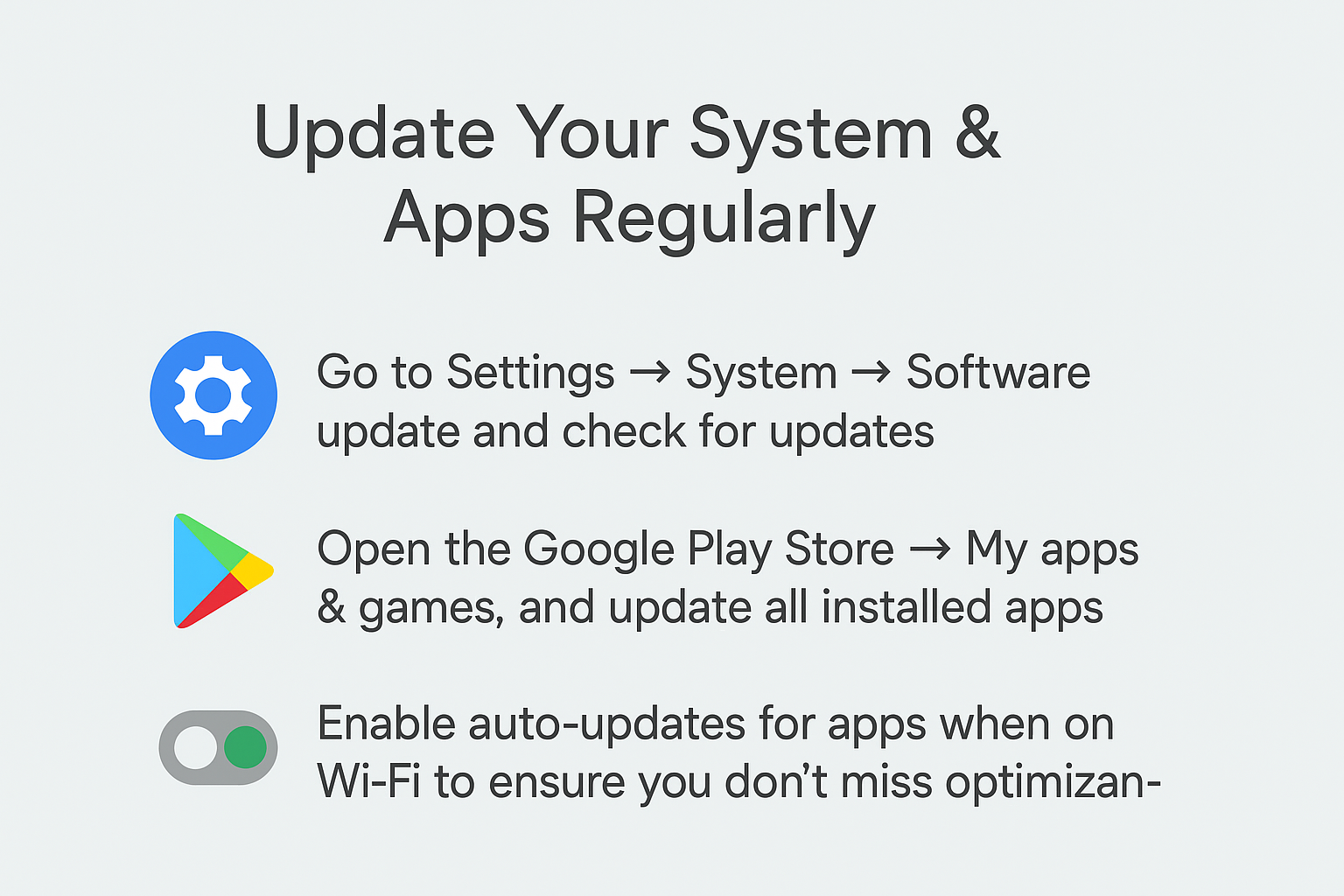
When your Android version is outdated, inefficiencies and memory leaks may remain unaddressed. Newer OS versions often include kernel and driver-level improvements that optimize hardware interaction. Likewise, app updates may fix crashes, reduce memory bloat, or remove deprecated code. Many Android speed‑up guides recommend this as the first step.
How to do it:
1. Go to Settings → System → Software update and check for updates.
2. Open the Google Play Store → My apps & games, and update all installed apps.
3. Enable auto-updates for apps when on Wi-Fi to ensure you don’t miss optimizations.
Remove Unused Apps and Bloatware
Over time, smartphones tend to accumulate apps that we seldom use. These unused apps and pre-installed bloatware can run background services, take up storage, and consume memory ultimately slowing your device.
Many manufacturer-provided apps (especially on lower-end or budget phones) are never actively used but still launch or perform tasks behind the scenes. Disabling or uninstalling them can free resources.
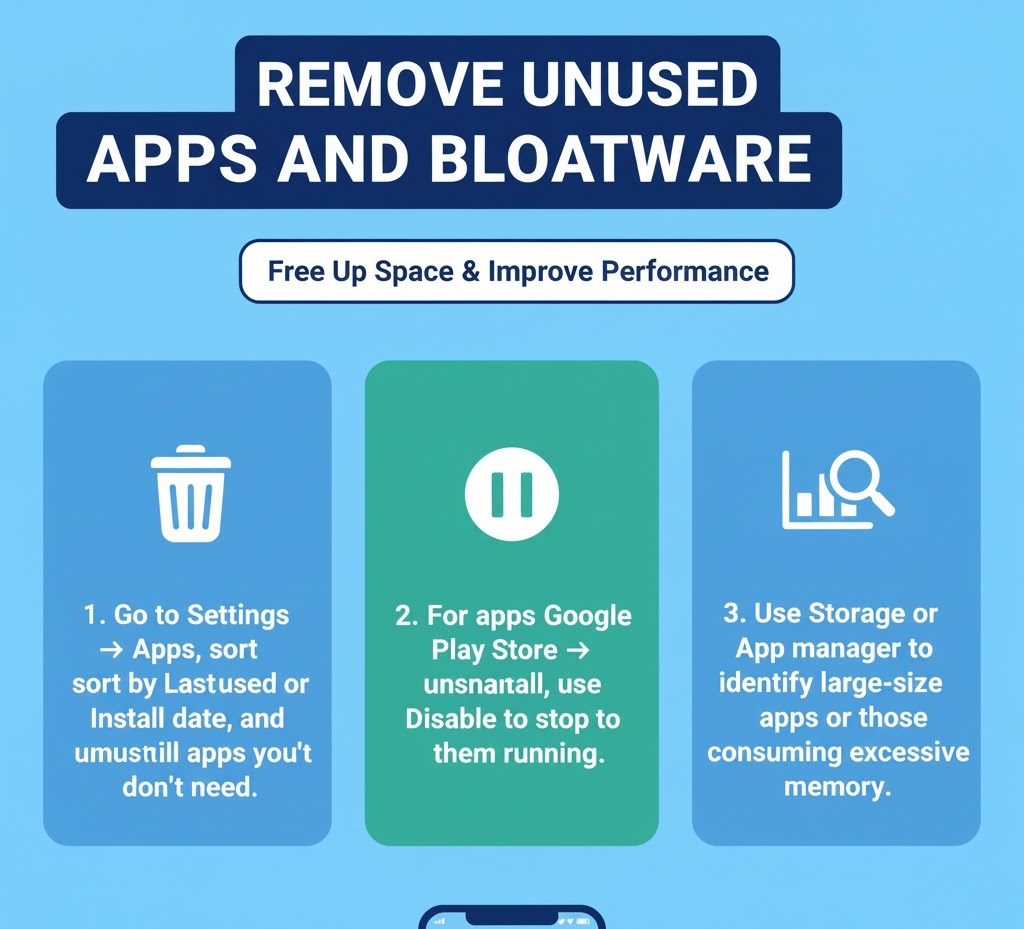
Steps to clean up:
– Go to Settings → Apps, sort by Last used or Install date, and uninstall apps you don’t need.
– For apps you can’t uninstall, use Disable to stop them from running.
– Use Storage or App manager to identify large-size apps or those consuming excessive memory.
Limit Background Processes & Permissions
Many apps launch background services or auto‑start at boot, which can quietly drain CPU, memory, and battery. Controlling which apps can run in the background is an effective method to make Android faster.
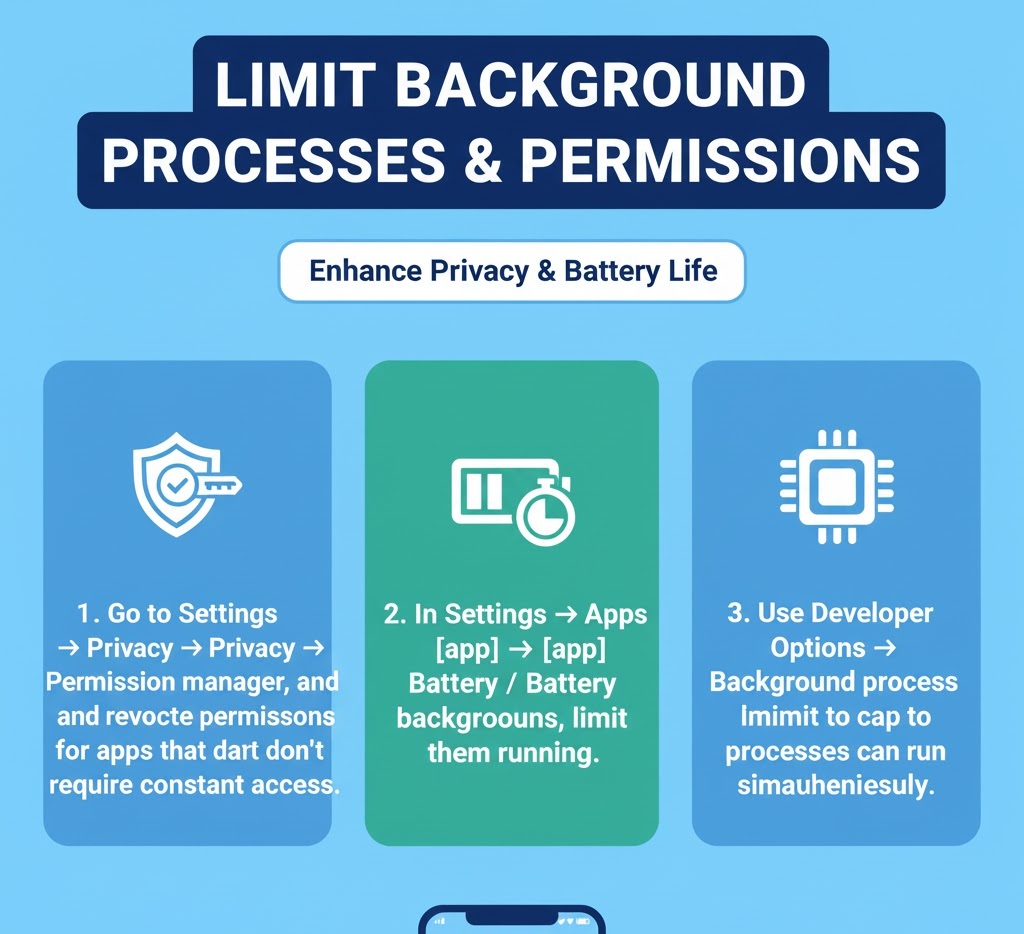
How to manage background activity:
– Go to Settings → Privacy → Permission manager, and revoke permissions for apps that don’t require constant access.
– In Settings → Apps → [app] → Battery / Background restrictions, limit background execution.
– Use Developer Options → Background process limit to cap how many processes can run simultaneously.
Clear Cache & Temporary Files
Apps often store caches and temp data for faster loading. But over time, this cached data can accumulate and slow down operations.
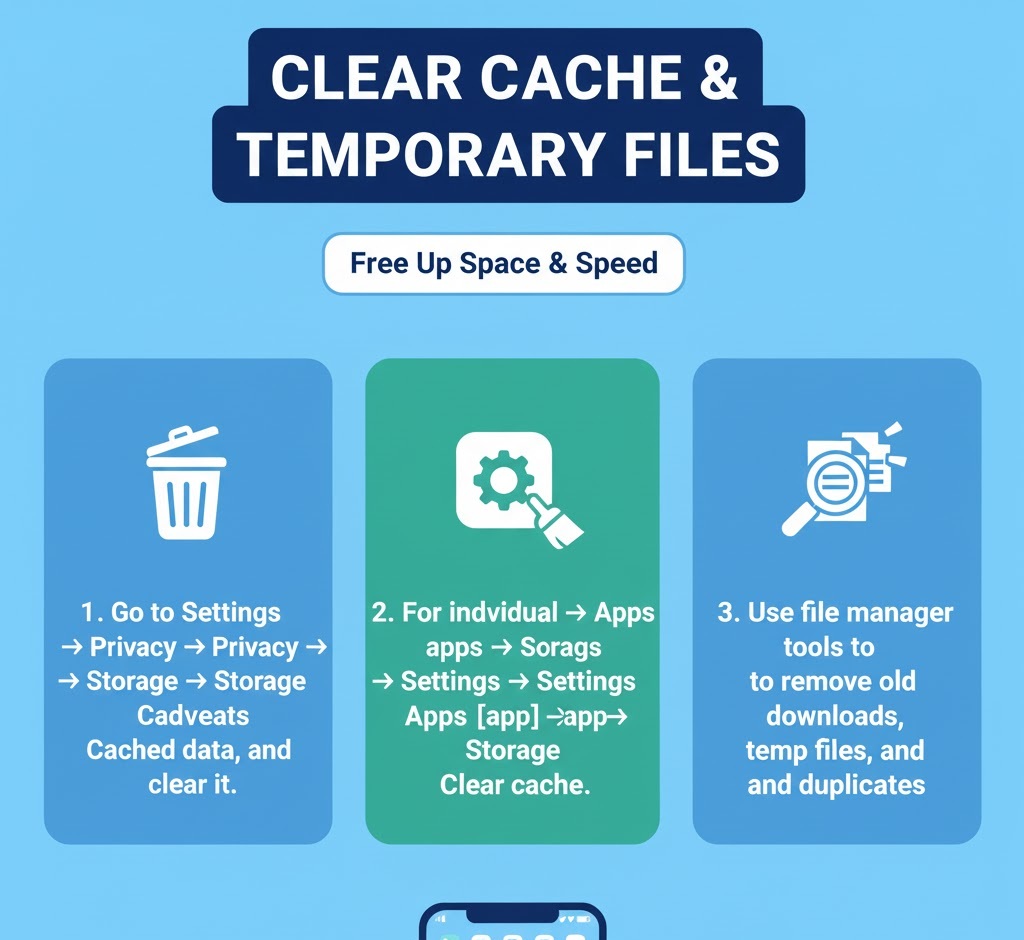
To clear cache:
– Go to Settings → Storage → Cached data, and clear it.
– For individual apps, go to Settings → Apps → [app] → Storage → Clear cache.
– Use file manager tools to remove old downloads, temp files, and duplicates.
Disable Animations & Visual Effects
While animations make the UI look polished, they also impose a slight lag. Reducing or disabling animations makes operations feel more instantaneous.
How to disable animations:
1. Enable Developer Options (tap build number 7 times in Settings → About phone).
2. Under Developer Options, set Window animation scale, Transition animation scale, and Animator duration scale to 0.5x or off.
Use Lite or Web Versions of Heavy Apps
Many popular apps have lighter alternatives or web versions that require fewer resources. For instance, Facebook Lite, Messenger Lite, or using PWAs.
When to use lite or web versions:
– For heavy apps, check if a Lite variant exists.
– Use progressive web apps via browser.
– Use simpler alternatives when you don’t need full features.
Restart Your Device Periodically
Restarting your device clears active processes, frees RAM, and gives the system a fresh start.
Tips:
– Restart daily or every few days.
– Use scheduled restarts if available.
– Auto-reboots at night can maintain performance over time.
Limit Widgets, Live Wallpapers & Launchers
Widgets, live wallpapers, and complex home screen animations may look nice, but they constantly refresh data, use memory, and consume CPU.
What to do:
– Remove unnecessary widgets.
– Switch to static wallpaper.
– Use lightweight launchers.
– Disable auto-refresh widgets like news tickers.
Use High-Performance Storage and SD Card (Carefully)
Using faster storage can reduce read/write lag. Avoid running apps from slower SD cards; move media there instead.
Best practices:
– Use high-speed SD cards.
– Move large files to SD, keep apps internal.
– Keep at least 10–15% internal storage free.
Factory Reset & Start Fresh (If Necessary)
If other steps don’t work, a factory reset can restore performance.
Important:
– Backup data first.
– Install only necessary apps after reset.
– Monitor performance as you reconfigure.
Advanced Tip: Custom ROM or Kernel (For Power Users)
Installing a custom ROM can remove bloat and optimize performance on unsupported devices.
– Choose reputable ROMs.
– Backup before flashing.
– Be prepared for troubleshooting.
Monitor Performance Metrics and Use Profiling Tools
To maintain a fast Android, monitor CPU, memory, and background activity.
How to use profiling:
– Enable Developer Options → Show CPU usage overlays.
– Use Android Profiler for advanced analysis.
– Detect and uninstall performance-draining apps.
If you’re looking to make your Android faster, the path doesn’t always mean buying a new device. With a combination of simple maintenance, resource management, and occasional deeper tweaks, you can achieve a notably smoother experience even on older hardware. From updating software and removing bloat to disabling animations and optionally exploring custom ROMs, these techniques deliver incremental gains that add up.
Start with safe and easy steps updates, cleaning apps, limiting background processes and then move to more advanced options if needed. Also, always backup your data before making major changes like resets or ROM installs.
How to Speed Up Your Android Phone Without Installing Any Apps