Many users underestimate the importance of storage hygiene. Yet, when your internal storage is nearly full, Android may lag, apps crash, updates fail, or the camera refuses to capture new photos. The system needs a buffer of free space to operate efficiently.
Also, leftover files, cached data, duplicate media, and rarely used apps accumulate gradually. Cleaning storage isn’t just about deleting files it’s about smart management knowing what to keep, when to delete, and how to automate the process.
People often search “clean android storage,” “free up space on Android,” or “Speed Up Your Android Phone” This article is designed to cover all those angles. The strategies here aim to help both casual users and tech‑savvy ones. By following these practices, you not only free up gigabytes but also extend your device’s lifespan, keep it responsive, and reduce frustration.
Check Current Storage Usage & Identify the Big Offenders
Before diving into deletion, you need a clear map of what is occupying your storage. Android provides built‑in tools to inspect usage under Settings , Storage (or Device care / Device maintenance depending on your phone model). You’ll typically see categories like Apps, Images & Videos, Audio, System, Other, and perhaps “Cached data.” Use this to spot which section is unusually large.
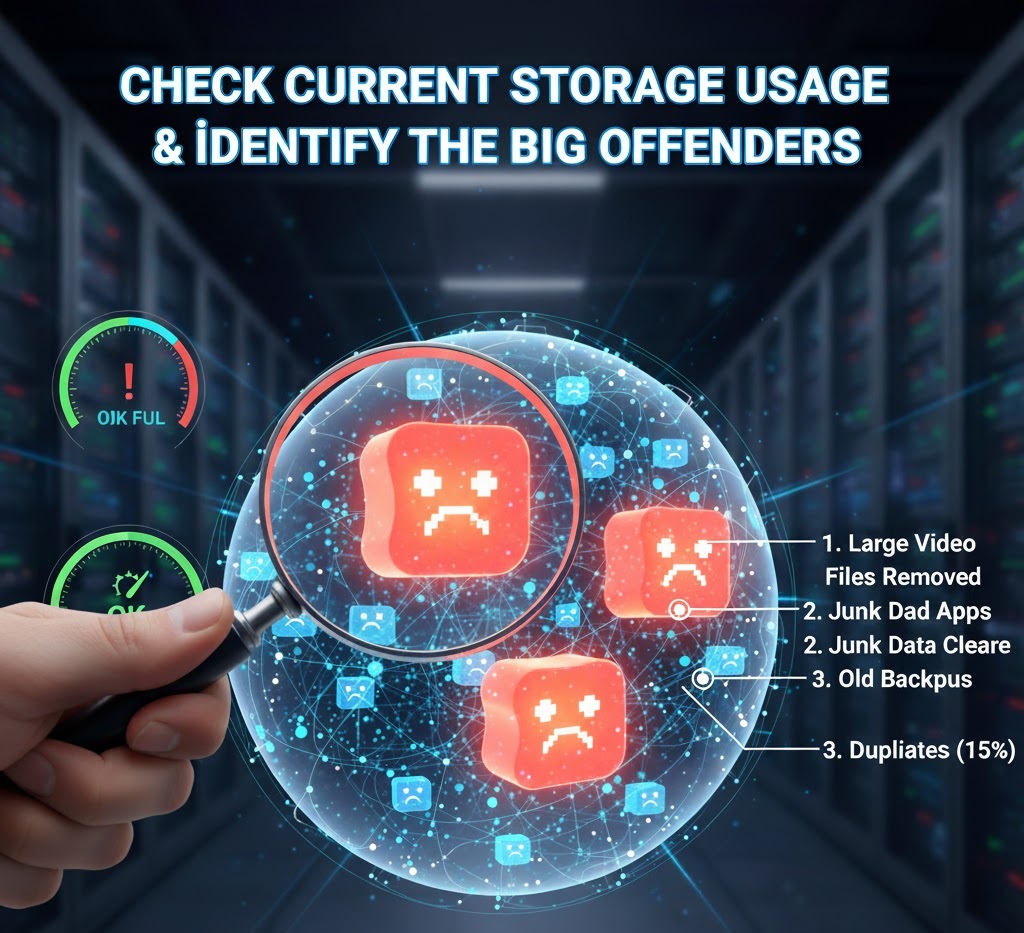
Another excellent tool is the Files by Google app (or your phone’s file manager). It usually offers a “Clean” or “Free up space” tab which suggests files for removal such as large files, duplicates, unused apps, or app cache. Use it to sort by file size, last modified date, or duplicates.
Also, consider using third‑party storage analyzer apps like DiskUsage or Storage Analyzer to view a more visual breakdown of folder sizes. Knowing your main storage hogs helps you target cleanup efforts smartly, rather than blindly deleting what you might need later.
Clear App Cache and Data
One of the fastest ways to free up space is by clearing cached data from apps. Cache is temporary data apps store to speed up operations, but over time it can grow very large. To clear it:
1. Go to Settings-Apps.
2. Tap a specific app you suspect (e.g. Chrome, Instagram, YouTube).
3. Tap Storage & cache (or Storage).
4. Choose Clear Cache.
This removes only temporary files and does not affect your login information or in‑app settings. If an app takes up an excessive amount (e.g. 1+ GB), you might opt to Clear Data.
But be cautious clearing data resets the app to its default state, deleting saved settings, accounts, offline content, etc. Some Android versions also allow you to clear cache for all apps at once under Storage settings. Note that after clearing cache, some apps may load slightly slower initially as they rebuild cache, but that is temporary and normal.
Uninstall or Disable Unused Apps
Many users forget how many apps they have installed, many of which they rarely or never use. Each app consumes space, and some may run background services that drain battery or memory.
Here’s how to clean this up:
– In Settings Apps, sort apps by “Last used” or “Size” to identify the least used ones.
– Tap on the app and choose Uninstall to remove it completely.
– For system apps or preloaded bloatware that cannot be uninstalled, you may see a Disable option. Disabling stops the app, prevents updates, and frees some space.
– If you frequently use certain apps but not always, consider using “Offload” (on some Android skins) or moving them out of active usage.
Some apps allow you to offload only parts of their data (e.g. download caches, offline files) while keeping your core data. Also, check individual app settings for media cleanup features. Removing unused apps not only frees space but also simplifies your interface and can improve performance.
Delete Large Files, Downloads & Duplicates
Your Downloads folder, email attachments, video recordings, and duplicate media often consume surprising amounts of storage. Here’s how to tackle them:
1. Downloads / My Files – Open your file manager. Navigate to the Downloads folder and sort by size or date. Delete files you no longer need.
2. Large Media Files – Videos, especially in 4K, can consume gigabytes. Review your Videos and Movies folder, and delete or move unneeded clips.
3. Duplicate Files – Use the “Clean” or “Files by Google → Clean → Duplicate files” feature to detect duplicates.
4. Empty Trash / Recycle Bin – Deleted files often move to a “Trash” or “Bin” first and remain there until permanently deleted. Empty the trash to fully reclaim space.
Regularly cleaning these large and duplicate items helps clear gigabytes you didn’t realize were occupied.
Leverage Cloud Storage & Backups
Instead of storing everything locally, use the cloud to offload photos, videos, documents, and backups. This frees up device space while keeping access when online.
Google Photos: Turn on “Back up & sync” in the Google Photos app. Once photos and videos are safely backed up, use “Free up device storage” to delete local copies.
Google Drive, Dropbox, OneDrive: Move large documents to cloud storage. Delete the local copy once uploaded.
Selective Sync / Auto‑Archive: Some cloud services let you keep placeholders locally and download full files only when needed.
Automatic Upload from Camera: Set your camera or gallery app to auto-upload new media to cloud immediately.
By using cloud services intelligently, you retain access to your data while dramatically reducing the burden on device storage.
Use an SD Card or External Storage
If your phone supports expandable storage (via microSD card), take advantage of it:
– Insert a fast microSD card.
– Format it via Settings-Storage-Format as internal or external.
– Move media files (photos, videos, music, documents) to the SD card.
– Some apps allow changing default save location (e.g. camera) to the SD card.
If your device does not support SD cards, consider external USB storage (OTG) or a portable SSD for occasional offloading of large files.
Clean Up Offline & App Data
Many apps store offline content to let you use them without connection: maps, offline music, videos, podcasts, caches, etc. These may be consuming large amounts of storage.
– Google Maps / Offline Maps: delete unused map areas.
– Streaming Apps (Spotify, Netflix, YouTube): remove downloaded playlists, episodes, or offline caches.
– Messaging Apps (WhatsApp, Telegram): review large files and delete media from chats.
– App Updates / Installation Residues: clear local cache from Play Store settings.
By cleaning these areas, you free up storage that was silently occupied by offline content you’re no longer using.
Perform a Periodic Maintenance Routine
Storage cleanup is not a one-time event but an ongoing habit. Set up a routine to keep your device lean and responsive.
– Monthly Review: clear app cache, review unused apps, delete large files.
– Threshold Alerts: when your free storage dips below ~10–15%, act.
– Automatic Tools / Schedulers: use built-in or trusted third-party tools.
– Backup & Archive Regularly: archive old media in external drives or cloud.
By treating cleanup as a regular maintenance task, you’ll avoid the stress of “storage full” notifications.
Advanced Tips & Precautions
If you’re comfortable with more advanced steps, these tips may help but use with caution:
– Wipe Cache Partition (via Recovery Mode): clears system-level cached files.
– Factory Reset (as last resort): backs up your data and gives a fresh start.
– Rooting (risky): gives superuser privileges but may introduce security risks.
– Avoid “Cleaner” apps with aggressive permissions.
– Disable auto-downloads / auto updates where possible.
Always back up important data before doing any deep clean or reset.