Accidentally deleted your photos? Don’t worry — you are not alone.
Many people lose their pictures by mistake every day. Whether you deleted them from your phone’s gallery, or after a factory reset, there are still ways to get them back.
In this guide, you’ll learn how to recover deleted photos on Android and iPhone, step by step.
We’ll cover free methods, recovery apps, and cloud backups that really work — even if you are not a tech expert.
📸 1. Check the Recently Deleted Folder (First Step)
Before trying any recovery app, check your Recently Deleted folder.
Both Android and iPhone keep your deleted photos for a limited time before they are permanently erased.
🟢 On Android:
- Open the Gallery or Photos app.
- Tap Library → Trash / Recently Deleted.
- Select the photos you want to restore.
- Tap Restore.
Most Android phones (like Samsung, Xiaomi, Oppo, Vivo, Realme) keep deleted pictures for 30 days in the trash folder.
🍎 On iPhone:
- Open the Photos app.
- Tap Albums → Recently Deleted.
- Select the photos you want to recover.
- Tap Recover at the bottom.
Apple also stores deleted photos for 30 days before removing them permanently.
💡 Tip: If you deleted a photo less than a month ago, this method usually works perfectly.
☁️ 2. Recover from Google Photos or iCloud
If you use cloud backup services, your photos might still be safe.
📱 On Android (Google Photos):
- Open the Google Photos app.
- Tap Library → Trash.
- Touch and hold the photo you want to recover.
- Tap Restore.
If it’s not in Trash, go to photos.google.com on a computer and check there too.
Google Photos keeps deleted pictures for 60 days before removing them completely.
🍏 On iPhone (iCloud Photos):
- Go to iCloud.com on your browser.
- Log in with your Apple ID.
- Click Photos → Recently Deleted.
- Select and Recover the images you need.
✅ Note: iCloud Photos must be turned on before deletion for this method to work.
💾 3. Restore from a Local Backup
If you back up your phone regularly, recovery is much easier.
On Android:
- Many brands like Samsung Smart Switch, Mi Cloud, Huawei Cloud, or OneDrive allow you to restore deleted photos from previous backups.
- Go to Settings → Accounts and Backup → Restore Data.
- Choose your last backup date and start the restore process.
On iPhone:
- Connect your iPhone to a computer with iTunes.
- Click on your device icon → Restore Backup.
- Choose a previous date when your photos were still on the phone.
⚠️ Warning: Restoring a backup might replace your current data, so back up new files first.
🧰 4. Use Photo Recovery Apps (If Nothing Else Works)
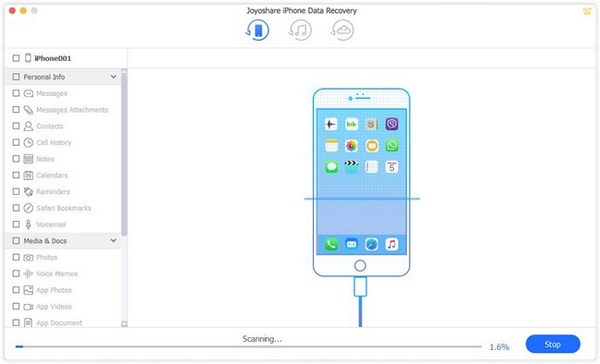
If the photos are not in Trash or Cloud, recovery apps can help.
These apps scan your internal storage for deleted media files.
🟢 Best Free Android Apps:
- DiskDigger Photo Recovery – Very popular and works without root.
- Dumpster – Like a recycle bin for your phone.
- EaseUS MobiSaver – Recovers photos, videos, and contacts easily.
- Tenorshare UltData for Android – Paid but more powerful for deep recovery.
🍎 Best iPhone Recovery Tools:
- Dr.Fone – Data Recovery (iOS)
- iMyFone D-Back
- PhoneRescue for iOS
👉 How to Use (Example with DiskDigger):
- Download DiskDigger from Play Store.
- Open it and allow storage access.
- Choose Basic Scan (no root) or Full Scan (requires root).
- Wait for the app to find deleted images.
- Select your photos and tap Recover.
💡 Tip: Always save recovered files to Google Drive or a different folder, not the same one — otherwise, new data may overwrite your deleted photos.
🔍 5. Recover Photos from Memory Card (SD Card Method)
If your photos were stored on an SD card, recovery becomes much easier.
Here’s how:
- Remove the SD card from your phone.
- Connect it to your PC using a card reader.
- Download free recovery software like:
- Recuva (Windows)
- PhotoRec (Windows/Linux)
- Disk Drill (Mac)
- Run the program and scan your SD card.
- Save the recovered images to your computer.
✅ These tools are great for recovering JPG, PNG, and even RAW images.
🚫 6. What Not to Do After Deleting Photos
Once you delete photos, every new file you save might overwrite them.
To increase your recovery chances:
- ❌ Don’t take new photos or videos immediately.
- ❌ Don’t install many new apps.
- ❌ Don’t factory reset your device before recovery.
- ✅ Turn off mobile data and Wi-Fi if possible.
The faster you act, the higher your chance of success.
🔒 7. How to Prevent Photo Loss in the Future
It’s always better to protect your photos before you lose them.
Follow these simple steps to avoid future photo loss:
- Turn on Cloud Backup:
- For Android → Google Photos → Backup & Sync → Turn ON.
- For iPhone → Settings → Apple ID → iCloud Photos → Turn ON.
- Use External Storage:
- Save copies to a USB drive or SD card.
- Regular Backups:
- Set automatic weekly or monthly backups.
- Use a Recycle Bin App:
- Install apps like Dumpster that keep deleted files temporarily.
📂 Always keep your most important photos in two different places — for example, your phone and cloud storage.
⚡ 8. Common Questions (FAQ)
Q1. Can I recover photos after a factory reset?
Yes, but only with professional recovery software like Dr.Fone or Tenorshare. The success rate depends on how much new data you’ve added.
Q2. Are free recovery apps safe?
Most are safe, but always download from Google Play Store or App Store, not third-party sites.
Q3. Can I recover deleted WhatsApp photos too?
Yes. If you use Google Drive or iCloud backup for WhatsApp, reinstall the app and choose Restore Backup during setup.
🌍 Conclusion
Losing your photos can be stressful, but as you can see, there are many ways to bring them back — even if you deleted them days or weeks ago.
Start with the Recently Deleted folder, then check Google Photos or iCloud, and only use recovery apps if needed.
So don’t panic — follow the steps in this guide, and your favorite memories might come back within minutes.