Smartphones remain central to daily life: from messaging and streaming to productivity, gaming, and navigation. But over time, nearly every device begins to slow down apps lag, screens stutter, battery drains faster. If you’re searching for ways to optimize phone performance, you’ve landed in the right place.
In this guide, you’ll find actionable, step‑by‑step strategies to restore speed, stability, and responsiveness to your phone whether it’s a flagship model or a budget device. We’ll cover system updates, resource management, advanced tweaks, and diagnostic techniques. Each section dives deep, offering clear explanations and instructions. Follow along, apply what fits your device, and you can revitalize your phone’s performance without needing a replacement.
Keep the System and Apps Up to Date
One of the most effective and simplest strategies to optimize phone performance is to ensure your operating system and applications are always current. Developers continually release updates that include bug fixes, optimizations, memory improvements, and security patches. Running outdated versions may leave your phone exposed to inefficiencies and performance drags.
New OS versions often bring behind‑the‑scenes optimizations for memory management, processor scheduling, and hardware drivers. Likewise, app updates often remove unnecessary background tasks, reduce memory leaks, and streamline code.

How to do it:
– In Settings → System → Software update, check and install any pending updates.
– Open the app store → My apps & games → Update all.
– Enable auto‑updates (preferably only on Wi-Fi).
– Check beta or stable channels for newer optimizations.
How to Speed Up Your Android Phone Without Installing Any Apps
Uninstall or Disable Unused Apps & Bloatware
Unused apps and built‑in bloatware are among the most common culprits behind sluggish performance. Even when not actively used, some apps run background services, consume RAM, or perform periodic checks.
Many manufacturers preload apps you never asked for. Disabling or uninstalling them frees resources.
Steps:
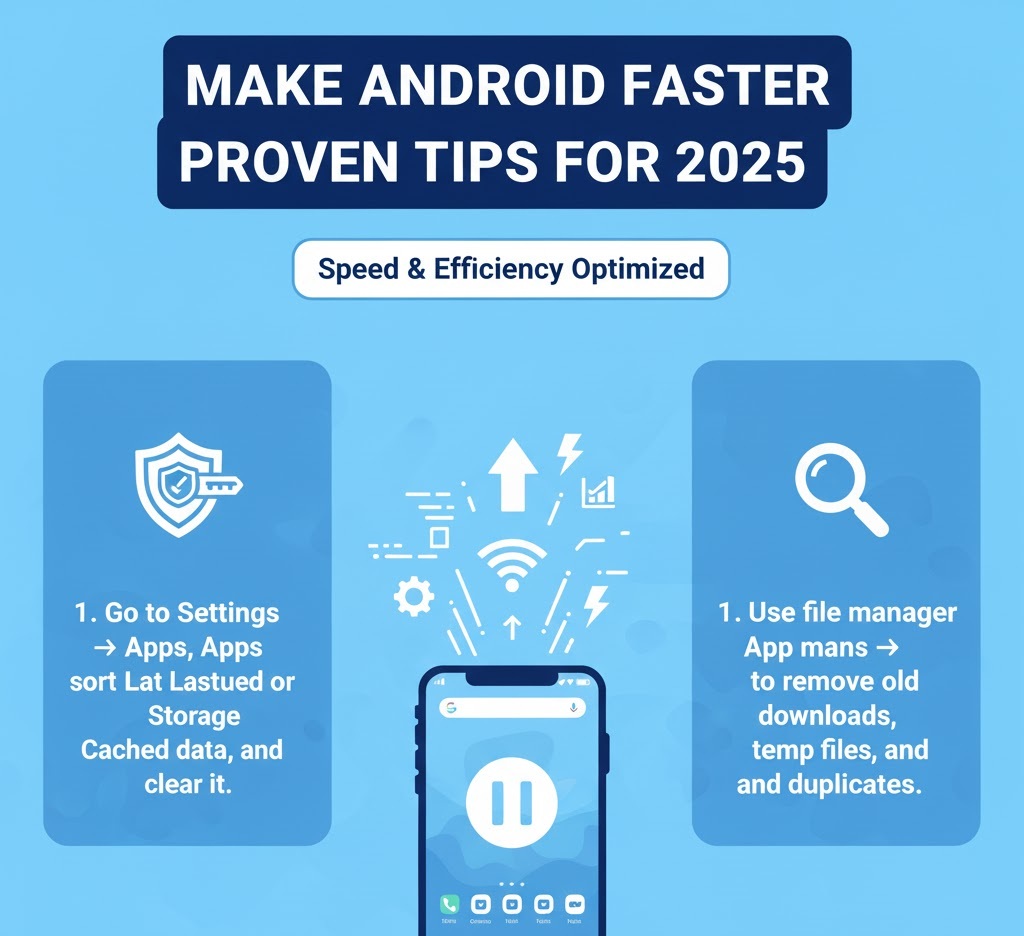
– Open Settings → Apps, sort by Last used or Size.
– Uninstall unnecessary apps.
– For system apps, use Disable.
– Use storage tools to find heavy apps and replace them with lighter ones.
Restrict Background Processes and Permissions
Background processes drain CPU, memory, and battery. By restricting unnecessary background activity and tightening permissions, you can free up resources.
How to manage background behavior:
– Go to Settings → Privacy / Permission Manager, revoke unnecessary permissions.
– Under Settings → Apps → [App] → Battery / Background restrictions, restrict activity.
– On Android, use Developer options → Background process limit.
– Use battery optimization features to auto‑restrict misbehaving apps.
Clear Cache, Temporary Files, and Junk
Over time, apps and the system accumulate temporary files, cached data, and logs. While caching helps performance, excessive cached data can slow down I/O operations.
Tips:
– Settings → Storage → Cached data → Clear cached data.
– Settings → Apps → [App] → Storage → Clear cache.
– Use trusted file managers to remove junk files, old downloads, and duplicates.
Reduce or Disable Animations & Visual Effects
Animations and transitions make the UI look polished but consume CPU/GPU cycles. Reducing or disabling them makes interactions feel faster.
How to adjust:
1. Enable Developer options (tap build number 7 times).
2. In Developer options, reduce Window animation scale, Transition animation scale, and Animator duration scale to 0.5x or 0x.
Choose Lightweight or Web Versions of Heavy Apps
Many mainstream apps are resource‑intensive. Lite or web versions use fewer resources. Swapping those in place of full apps is smart.
When and how to switch:
– Identify heavy apps using system settings.
– Check for Lite variants.
– Use PWAs or browsers instead of heavy native apps.
Restart Your Phone Regularly
A simple reboot clears cached processes, releases memory, halts leaks, and resets the system. Restart your phone at least every few days.
Some phones offer scheduled restarts (e.g., nightly). This refreshes performance without other changes.
Minimize Widgets, Live Wallpapers & Heavy Launchers
Widgets, live wallpapers, and heavy launchers consume CPU, memory, and refresh cycles. Simplify your home screen.
What to do:
– Remove unnecessary widgets.
– Use static wallpapers.
– Switch to lightweight launchers.
– Avoid excessive auto‑updating home elements.
Maintain Adequate Free Storage & Use Faster Storage (If Available)
When internal storage is near full, speed suffers. Maintain at least 10–15% free space. Use high-speed SD cards only for non-critical files.
Tips:
– Regularly delete large files.
– Move media to cloud or external storage.
– Avoid installing apps on external storage.
– Monitor disk usage regularly.
Use Performance Mode or Advanced Settings (If Available)
Many modern phones include performance or boost modes. These allocate more resources for speed at the cost of battery.
How to use:
– Go to Settings → Battery / Performance / Device Care.
– Enable high-performance or boost modes.
– Turn on auto-clean and auto-optimization features.
– Use memory-clean tools occasionally.
Monitor Performance & Diagnose Bottlenecks
To truly optimize phone performance, monitor CPU, memory, and network usage. Identify misbehaving apps.
Tips:
– Enable Developer options → Show CPU / Memory usage.
– Use system battery/performance stats.
– Install monitoring apps to detect abnormal spikes.
– Uninstall or restrict problematic apps.
Consider a Factory Reset or Fresh Start (If All Else Fails)
If the phone remains sluggish, a factory reset can help. Resetting clears apps, settings, caches, and system clutter.
Steps:
– Backup contacts, photos, texts, and app data.
– Use Settings → System → Reset / Factory Data Reset.
– After reset, install only essential apps first.
– Gradually reintroduce others while monitoring performance.
Best Practices Summary
Optimize phone performance involves updates, background control, storage management, visual simplification, diagnostics, and occasionally resetting the device. By applying these techniques, you can restore speed and stability without replacing your phone.
Best practices:
– Keep system & apps up to date
– Remove unused apps
– Restrict background activity
– Clear cache & junk
– Reduce animations
– Use Lite or PWA versions
– Restart regularly
– Keep home screens simple
– Maintain free storage space
– Use performance modes when needed
– Monitor diagnostics
– Use factory reset if necessary